Chapter 1
Set up your tablet
Any tablet from the last few years can become a prayer clock that stays on all day. Setting it up takes about ten minutes.
What you need
- An Android tablet, an Amazon Fire tablet or an iPad.
- Wi-Fi. The app checks for new times and weather every 15 minutes.
- A charger, and a spot near a power socket with a stand or wall mount.
Choose your tablet
Pick yours to see only its steps.
Android
- Open the app. In Chrome, go to salahhub.pages.dev
- Add it to the home screen. Tap the ⋮ menu, then Add to Home screen or Install app. From now on, open Iqama Times from its icon. It opens without the address bar.
- Keep the screen on. In the app, tap Keep screen on at the top right.
- Set a long screen timeout as a backup. Settings › Display › Screen timeout, and choose the longest time.
- Optional: lock the tablet to the app. App pinning stops children leaving the app. Turn it on under Settings › Security › App pinning (on some tablets it is under Security & privacy), then pin Iqama Times from the recent apps screen.
Amazon Fire
- Open the app. In Silk Browser, go to salahhub.pages.dev
- Add it to the home screen. Tap the ⋮ menu, then Add to Home Screen. Name it Iqama Times and tap Add.
- Keep the screen on. In the app, tap Keep screen on at the top right. On a Fire tablet this matters most: newer models have no “Never” choice for the screen timeout.
- Set a long screen timeout as a backup. Settings › Display › Display Sleep, and choose the longest time. On some models the menu is called Display & Sounds, and the setting is called Sleep.
iPad
- Open the app. In Safari, go to salahhub.pages.dev
- Add it to the home screen. Tap the Share button ⬆, then Add to Home Screen, then Add.
- Keep the screen on. In the app, tap Keep screen on at the top right.
- Stop the iPad locking itself. On older iPads, or if the screen still turns off: Settings › Display & Brightness › Auto-Lock › Never.
- Optional: lock the iPad to the app. Guided Access stops children leaving the app. Turn it on under Settings › Accessibility › Guided Access and set a passcode. Open Iqama Times, triple-click the top button (or the Home button, if your iPad has one), and tap Start. To leave, triple-click again and enter the passcode.
The buttons at the top
These sit at the top right of every screen in the app.
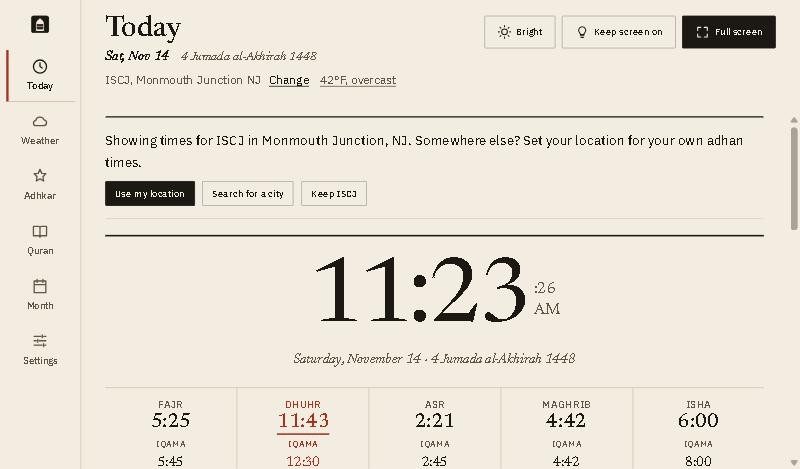
- Bright changes how bright the page is: Bright, Soft, Dim or Darkest. Chapter 6 shows how to dim it by itself at night.
- Keep screen on stops the tablet going to sleep while the app is open. Tap it again to turn it off.
- Full screen shows the large clock and today’s times with nothing else around them. Tap Exit full screen to come back.
On a tablet there is also a Help button to the left of these. It opens this guide at the chapter for the screen you are on. On a phone, find the guide under Settings › About.
On every tablet
- Tap the screen once after opening the app. Browsers only play sound after the page has been touched. If you see Tap to enable sound, tap it.
- Turn the volume up, and check the tablet is not muted or on Do Not Disturb.
- Keep it plugged in. If your tablet has a battery-protect or optimised-charging setting, turn it on. It stops the battery sitting at 100% all day.
Good to know
- Alerts and Keep screen on only work while Iqama Times is open on the screen. Leave it open.
- Will it run on my old tablet? If the clock appears and the seconds tick, yes. If the app says the browser cannot keep the screen on, use the screen timeout or Auto-Lock setting above instead.